.svg)
Optimising Your Webflow Website Speed in 2026 : The Ultimate Guide
Optimise Webflow speed and SEO in 2025 with expert tips for speed

TL:DR
- The Goal: Achieving a high Lighthouse score is secondary to passing the Core Web Vitals (CWV) assessment, which uses real-world field data.
- Critical Update: As of 2024-2026, Interaction to Next Paint (INP) has officially replaced FID. Site responsiveness to user input is now a primary ranking factor.
- Key Killers: Excessive third-party scripts, unoptimised custom fonts, and inefficient video embeds are the leading causes of Webflow performance degradation.
- The Solution: Leverage Webflow’s native Avif support, migrate video hosting to SuperMoo, and adopt strict "Clean Code" governance for styles and scripts.
1. Why does Webflow website speed affect SEO and conversions?
A high-performing website is no longer a luxury; it is a fundamental requirement for digital growth. In 2026, user patience is at an all-time low, and search engines have formalised speed into the ranking algorithm.
- Search Engine Visibility: Google uses Core Web Vitals (LCP, CLS, and INP) to determine page experience. Sites that fail these metrics are often suppressed in search results, regardless of content quality.
- Commercial ROI: Faster load times directly correlate with lower bounce rates and higher conversion rates. Even a 0.1-second improvement can measurably impact your bottom line.
- Brand Authority: A snappy, responsive site signals professional infrastructure. Conversely, a slow site creates friction that erodes trust before a user even reads your value proposition.
2. How do I measure Webflow website performance accurately?
Measuring speed requires a distinction between "Lab Data" (controlled tests) and "Field Data" (actual user experiences).
Steps to Audit Your Performance:
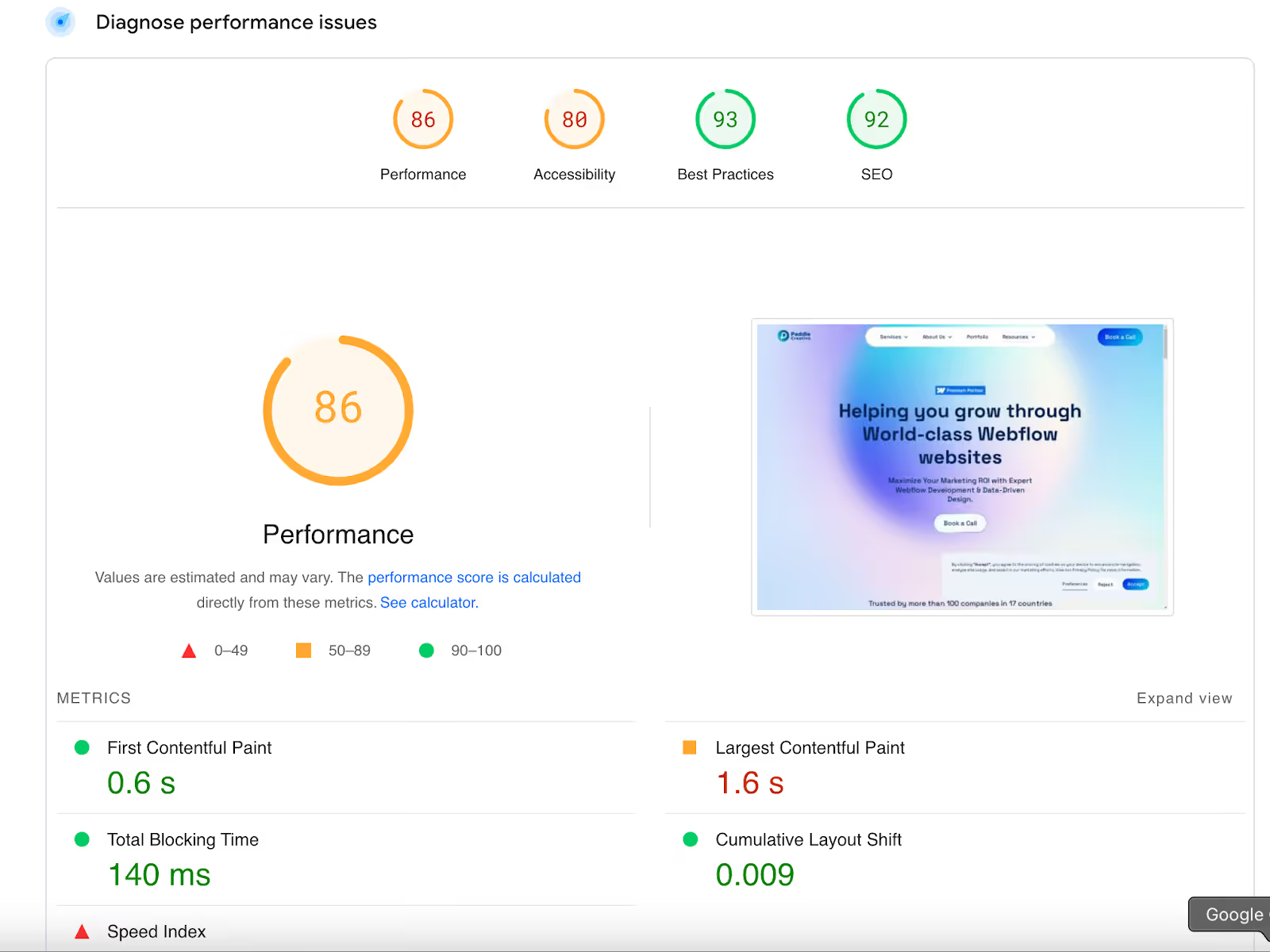
- Google PageSpeed Insights (PSI): Use this to view your 28-day Chrome User Experience Report (CrUX). This is the data Google uses for rankings.
- Lighthouse in Chrome DevTools: Run tests in Incognito mode to eliminate interference from browser extensions. This provides immediate feedback during the development phase.
- Monitor the Full Metrics Suite:
- Time to First Byte (TTFB): Measures server responsiveness and CDN efficiency.
- First Contentful Paint (FCP): The time it takes for the browser to render the first piece of DOM content.
- Largest Contentful Paint (LCP): Measures loading performance. Target: Under 2.5 seconds.
- Cumulative Layout Shift (CLS): Measures visual stability. Target: Score under 0.1.
- Interaction to Next Paint (INP): Measures responsiveness to every user interaction. Target: Under 200 milliseconds.
Paddle Creative Insight: Enhancing Webflow Performance - Skip Background Image.: Avoid using background images in Webflow, as they do not support lazy loading. This can significantly impact your site’s performance, particularly on pages with multiple background images. Opt for inline images instead, which can be lazy-loaded for better efficiency.
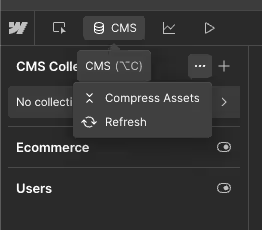
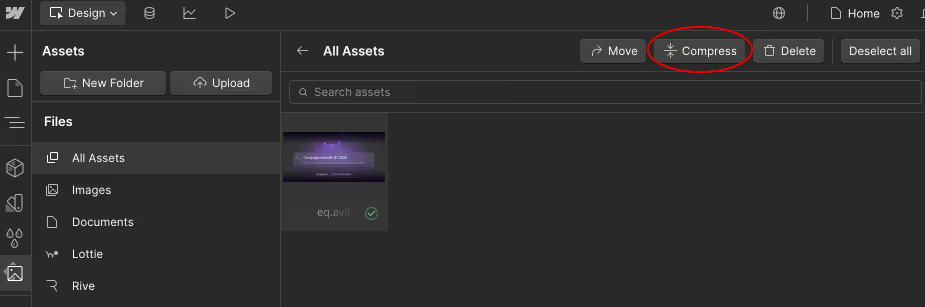
Optimise CMS Images: Many developers overlook Webflow’s built-in image compression tool for CMS images. You can reduce image size with just a click without compromising quality, boosting your site’s load speed. Refer to the screenshot below to locate this feature.
Disable Unused Webflow Components: Remove or disable components such as sliders or lightboxes that are not in use in Webflow projects. They can unnecessarily add to your site’s codebase, increasing page load time.
3. How do third-party scripts slow down Webflow sites?
Third-party scripts (tracking pixels, chat widgets, CRMs) are often the heaviest elements on a site. Every script added increases the "Total Blocking Time" (TBT), directly hurting your INP score.
Best Practices for Script Management:
- Avoid Inline JavaScript: Adding large blocks of code directly into the page settings can block the browser from rendering visible content.
- Prioritise the Footer: Whenever possible, load scripts before the </body> tag. This ensures the site’s visual elements load before the browser spends resources on background scripts.
- Use Async and Defer Attributes:
- Async: Use for scripts that don't depend on other scripts (e.g., basic analytics). It fetches the script while the page continues to load.
- Defer: Use for scripts that require the full page to be ready. This prevents the script from stopping the initial render.
- Audit for "Zombie" Scripts: Many sites carry legacy code from tools no longer in use (e.g., old Hotjar or ZoomInfo tags). Removing these is the fastest way to reclaim performance.
Paddle Creative Insight: Clean Up Unnecessary Scripts for Faster Site Speed. Over the years, we’ve optimised SEO for numerous websites and often find unnecessary scripts like ZoomInfo, Hotjar, or Apollo.io added to sites, even when they’re not in use. These scripts can drastically slow down your website, reducing performance and impacting user experience.
Solution:
- Audit Scripts: Use tools like Google PageSpeed Insights to identify unused or heavy scripts.
- Remove Unnecessary Scripts: Keep only the scripts essential to your website's functionality.
- Optimise Necessary Scripts: Add the async or defer tag for essential scripts to improve load speed.
Example of Using defer and async Tags:
Here’s how you can optimise a Hotjar script in Webflow:
- async: Loads the script in parallel with the rest of the page, reducing the time it takes for your content to appear.
- defer: Loads the script only after the HTML parsing is complete, ensuring it doesn’t block page rendering.
While async is great for speed, be careful using it for scripts that need to load in a specific order (like a base tracking script and its event listeners). In those cases, defer is your best friend to ensure the site doesn't break while trying to be fast.
If Hotjar is critical to your analytics but not needed immediately, using async lets it load without delaying the site's content. Similarly, defer ensures it runs only after your site is ready, maintaining a smooth user experience.
4. Why is SuperMoo the best way to load videos on Webflow?
Native Webflow video tags and standard YouTube/Vimeo embeds are performance bottlenecks. YouTube embeds, in particular, load large amounts of external JavaScript and tracking cookies, which tank Lighthouse scores.
The SuperMoo Advantage: For the most optimised experience, we recommend using SuperMoo. It is engineered specifically for Webflow speed, offering distraction-free video hosting that bypasses the "bloat" of traditional social players. It ensures your high-impact videos load instantly without the background baggage that triggers Core Web Vitals failures.
5. How do I optimise Webflow images for speed and SEO?
Images usually represent the largest share of a page’s total file size. Proper management here is non-negotiable.
- Avif Format: Webflow’s support for Avif results in 90% smaller files than JPEG/PNG, with no visible loss in quality.
- The Background Image Problem: Avoid using Webflow's "Background Image" style property. These images do not support lazy loading. Instead, use a standard Image Element set to Object Fit: Cover and Width/Height: 100%.
- Eager vs. Lazy Loading: * Set images "above the fold" (visible on load) to Eager.
- Set all other images to Lazy via the element settings.
- CMS Image Compression: Use Webflow’s built-in CMS image optimisation tool to bulk-compress dynamic assets with a single click.
6. How can I improve Webflow speed through better organisation?
Efficient code organisation reduces the amount of CSS the browser has to parse, leading to faster "Time to First Byte" and LCP.
Cleanup and Governance Steps:
- Style Manager Cleanup: Regularly use the "Clean Up" tool to remove unused classes. Unused CSS adds unnecessary weight to every single page load.
- Interaction Audit: Delete unused animations in the Interactions tab. Even unassigned animations can add bulk to the site's global JavaScript file.
- Global Styles: Set your typography and base colours at the Body (All Pages) level. Avoid declaring font families 500 times across individual classes.
- Framework Adoption: Use a system like Client-First to maintain a lean class structure and prevent "div-soup", which slows down browser DOM parsing.
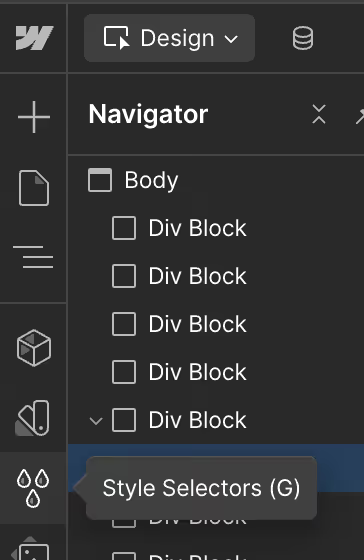
Paddle Creative Insight: Before you start the development process in Webflow, use the Relume Library Styleguide Cloneable to define Global Styles and Classes. It saves time and maintains efficiency throughout the project.
7. How do I handle advanced font optimisation?
Fonts are a common cause of "FOIT" (Flash of Invisible Text), which negatively impacts user experience and CLS.
- Limit Variants: Only load the specific weights you use (e.g., 400 and 700). Loading "Thin," "Extra Light," and "Black" when they aren't used is a common waste of resources.
- Self-Hosting: Instead of linking to Google Fonts, download the .woff2 files and upload them directly to Webflow. This reduces the number of external DNS lookups required.
- Font-Display Swap: Ensure your font settings are set to Swap. This shows a system font immediately, so the user can read the content while the custom font loads in the background.
Advanced Implementation: For critical brand fonts, you can add this code to your <head> to force the browser to prioritise the font file:
8. Managing SEO Infrastructure: Canonical, Lang, and Robots.txt
Speed is part of SEO, but technical tags ensure your speed gains actually translate to rankings.
- Canonical Tags: Prevent duplicate content issues by specifying the preferred URL for every page. In Webflow, you can set a Global Canonical Base URL in the SEO settings.
- Language Tags (lang): Set the site language (e.g., lang="en") in General Settings. This is vital for search engine regionality and accessibility (A11y), ensuring screen readers interpret the content correctly.
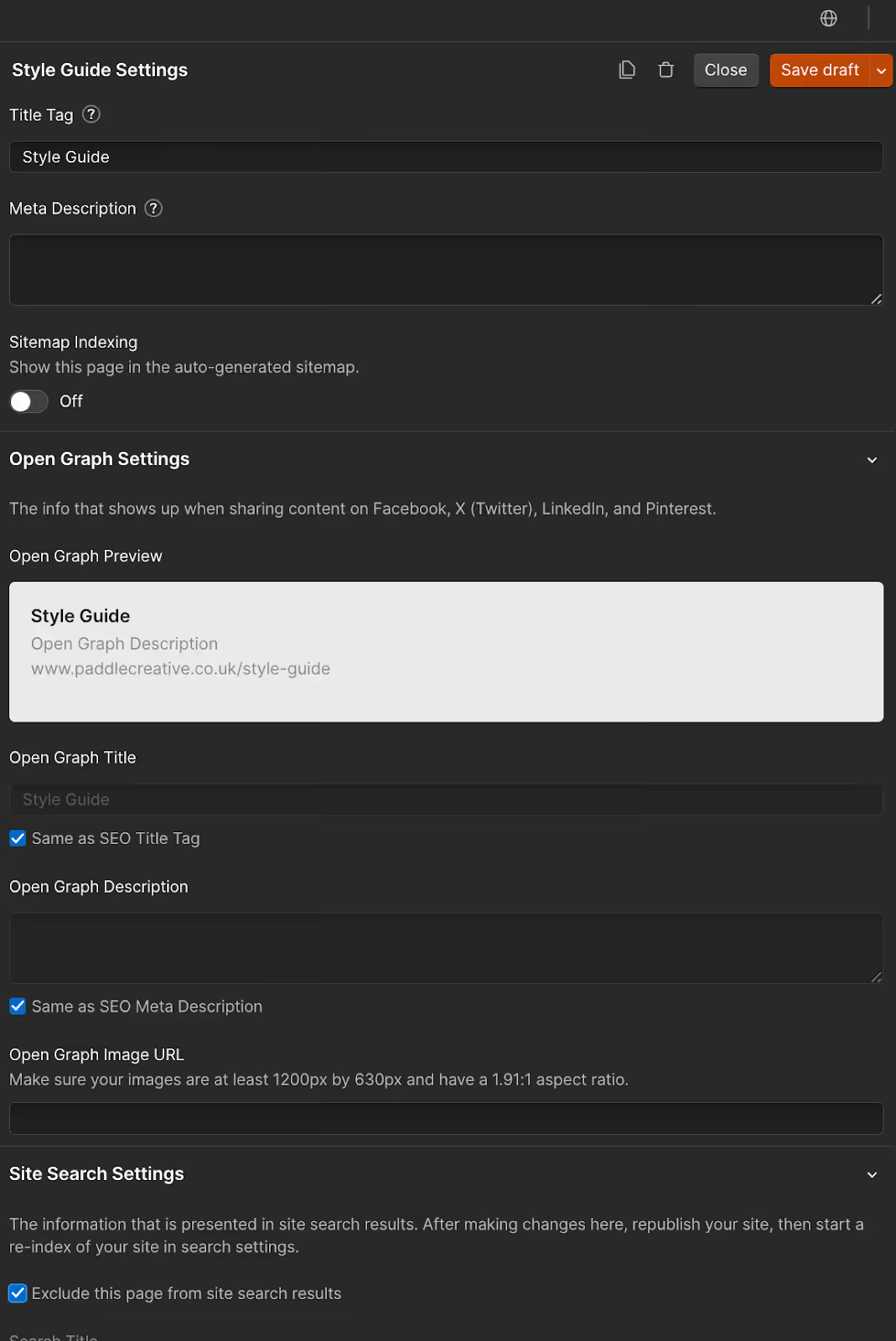
- Robots.txt & Sitemaps: Customise your robots.txt to prevent search engines from wasting "crawl budget" on utility pages like /thank-you or /test-page. Use the "Exclude from Sitemap" toggle for any non-public pages.
9. Testing, Monitoring, and Continuous Iteration
Performance is not a "set and forget" task. Every new blog post or marketing integration can shift your scores.
The Performance Maintenance Loop:
- Iterative Testing: When making changes, test one variable at a time to see its specific impact on TBT or LCP.
- Cross-Device Verification: Never rely solely on desktop scores. Google uses Mobile-First Indexing, meaning your mobile performance is the only one that truly impacts your rank.
- Real User Monitoring: Periodically check your "Field Data" in the Google Search Console, under the "Core Web Vitals" report, to see how actual visitors experience the site.
.avif)
%20Resource.avif)