
.svg)

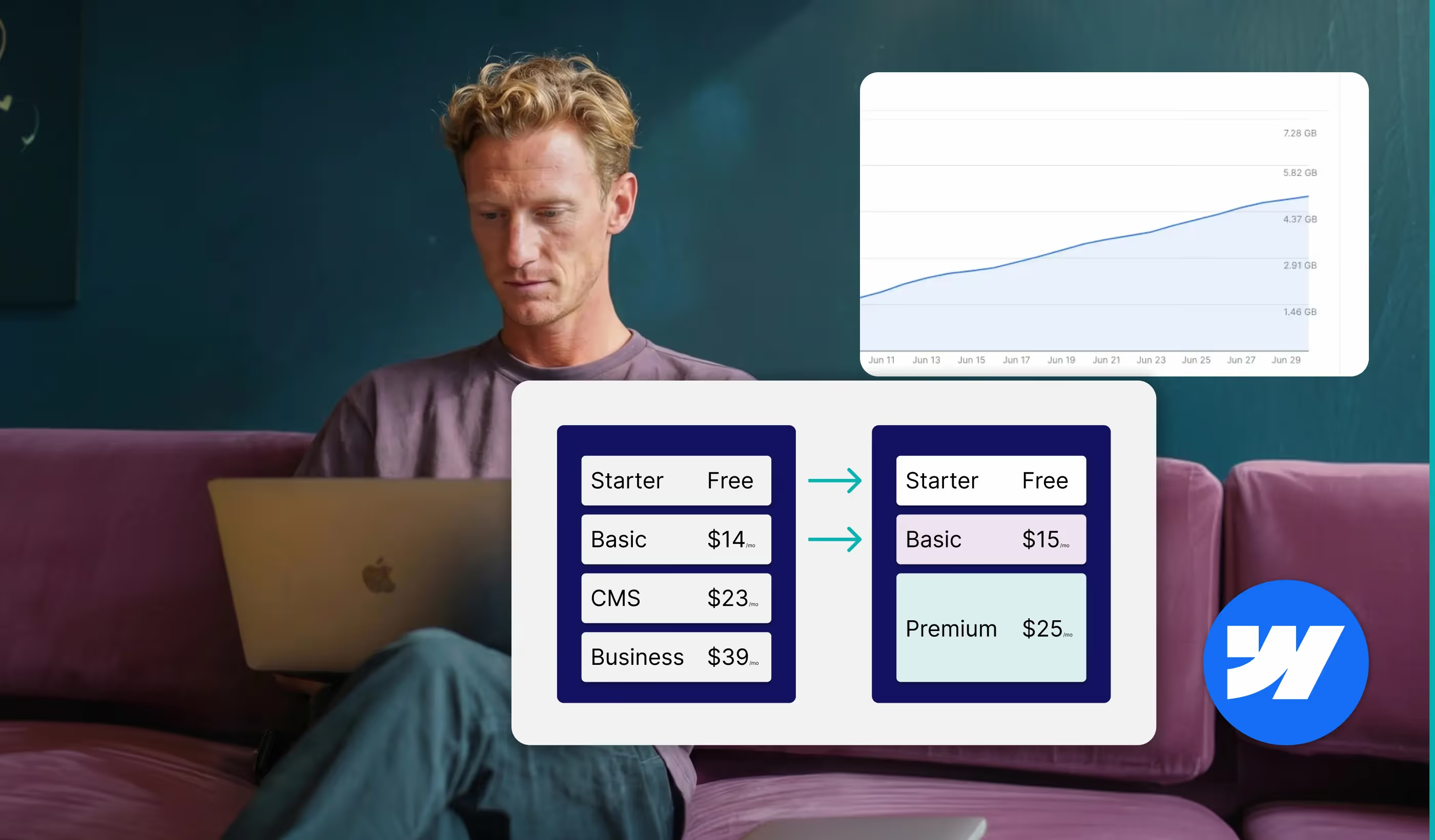
- CMS and Business plans are gone, merged into one new Premium plan
- A new Team plan sits between self-serve and Enterprise
- AI credits now come included with every Workspace plan
- Most existing sites see the change at next renewal on or after 29 June 2026
- Switching to lighter video hosting (like SuperMoo) and reducing bandwidth can keep you on a lower plan
If you've got a Webflow site, your bill is about to look different. Some of you will pay less. Some will pay more. Most won't notice until renewal.
Here's the short version, what it means for your site, and where you might save money without losing anything.
What's actually changed
Webflow rolled out a new pricing structure on 13 May 2026. The headline points:
- CMS and Business plans are gone. They've been merged into a single new plan called Premium.
- Workspace plans got simplified. Fewer tiers, easier to choose.
- A new Team plan launched. Sits between self-serve and Enterprise, starting around $2,500/month annual.
- AI credits are now included in every Workspace plan, with extra credits available as an add-on.
- Bandwidth limits dropped on some plans, with add-ons sold separately if you go over.
You can read Webflow's full breakdown here.
When does it hit your account?
It depends on your setup:
- New Site plans: already in effect from 13 May 2026.
- Most existing sites: at your next renewal on or after 29 June 2026.
- Sites in Freelancer or Agency Workspaces, or on legacy pricing: at your next renewal on or after 16 November 2026.
If you want to delay the change, switching from monthly to yearly billing before your effective date locks in your current plan for another year.
Will you pay more or less?
Honest answer: it depends on how your site behaves.
You'll likely pay less if:
- You were on the old Business plan, on monthly billing, and use under 50GB bandwidth.
- You were on the CMS plan and had CMS item add-ons. Those add-ons go away. The higher CMS limit comes built in.
- You wanted access to Webflow's AI features without paying separately.
You'll likely pay more if:
- You're on the old Basic plan. It's gone up slightly, from $14 to $15/month annual, and from $18 to $25/month monthly. The static page limit doubles, but that's not much use if you weren't hitting it.
- You have high bandwidth usage. The new plans have lower base bandwidth, so add-ons may push your total up.
- You run a content-heavy or marketplace site with rich media.
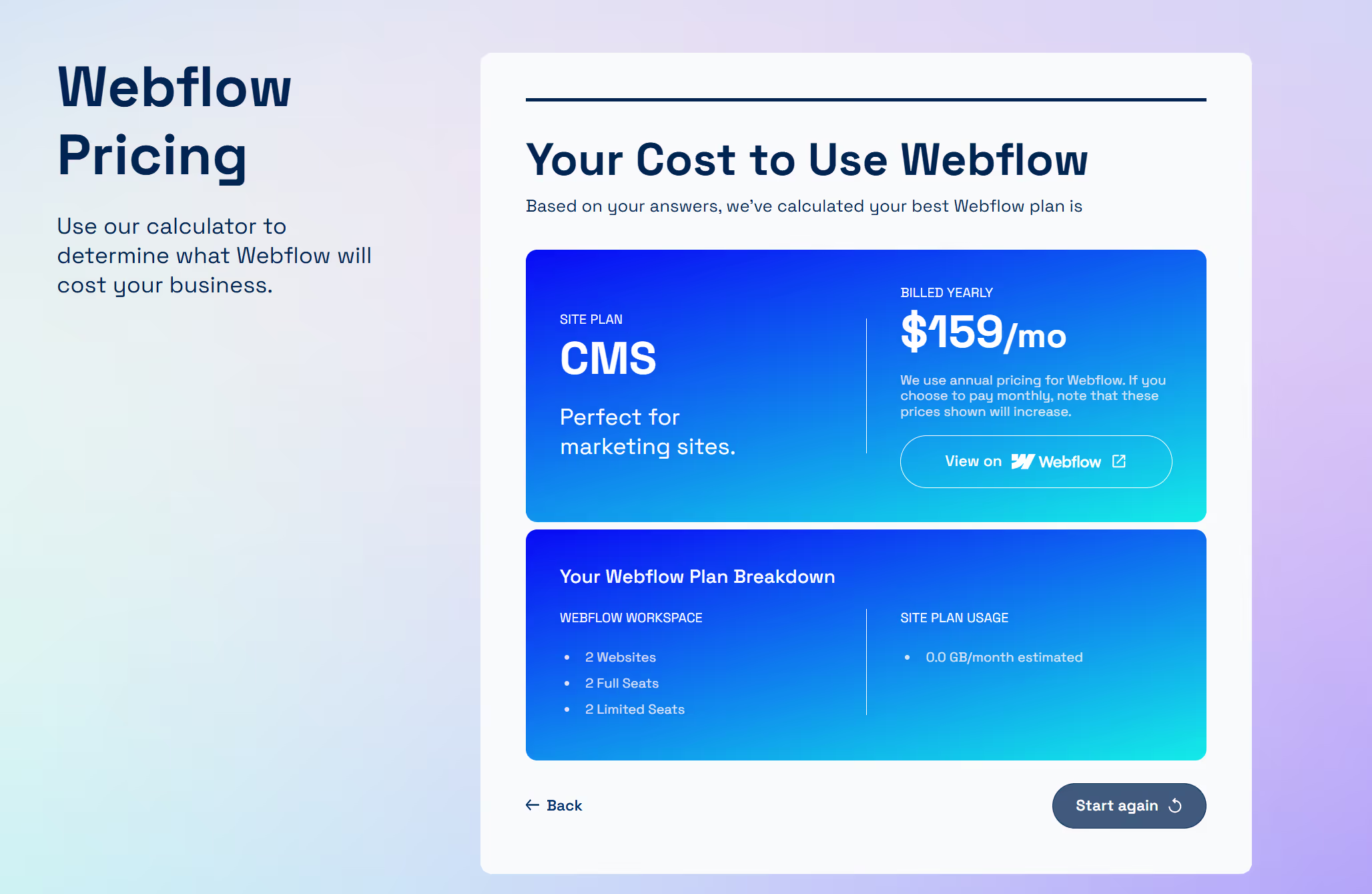
Webflow built a pricing calculator so you can see your exact position.
Where the new Team plan fits
The Team plan is new. It's aimed at fast-growing teams who've outgrown self-serve but aren't ready to commit to Enterprise. It bundles a site, 10 seats, Localization, AEO agents, page branching, and a few other features that used to be Enterprise-only.
Worth a look if you've got multiple contributors, need localisation, or have been priced out of Enterprise.
One easy way to save money: your video hosting
If your site has video on it, this is worth checking before your renewal.
Video is one of the biggest bandwidth drains on a Webflow site. If you're hosting video directly through Webflow, or paying separately for a video platform, you're either eating into your bandwidth limit or paying twice.
SuperMoo is a video hosting platform built for marketing teams. It serves video at a fraction of typical bandwidth costs, is the most optimised player on the market, and can make your site load up to three times faster compared to other video options. It embeds cleanly into Webflow too. If you switch your video hosting over, you can often stay on a lower Webflow plan, or avoid paying for bandwidth add-ons.
For most sites with video, you can actually save money overall by switching videos to SuperMoo and thus reducing your Webflow bandwidth usage.
Worth a look if you're staring at a higher renewal bill.
Book a quick call with a Paddler. We'll look at your account and tell you exactly what to do.

Other ways to cut your bandwidth bill
Video is the biggest win, but it's not the only one. A few small changes to how your site is built can cut your bandwidth use noticeably. If you're sitting close to a limit, this is where to start. We've covered this in more depth in our guide to optimising your Webflow site speed, but here's the short version.
Host your fonts locally. Most Webflow sites pull fonts from Google Fonts every time a page loads. Upload your font files to Webflow directly and serve them from your own site instead. Faster load, lower bandwidth, better for privacy too.
Compress your images. Webflow has a built-in image compressor that converts uploads to AVIF, which is great. But for the best results, resize your images before you upload them. A homepage hero rarely needs to be more than 300KB. Use a tool like TinyPNG or Squoosh to get the size down first, then let Webflow handle the format conversion.
Cut your JavaScript. Every script you add to your site has to load on every page. Old tracking pixels, abandoned A/B tests, unused embeds, they all add up. Audit what's actually being used in your site settings and project settings. If it's not pulling its weight, remove it.
Set videos to lazy load. If you're using SuperMoo, you can switch any video between eager and lazy load right in the platform settings. Set anything below the fold to lazy load. Visitors who never scroll never trigger the load, and you save bandwidth on every visit. Worth doing on every page that has more than one video.
Check your CMS image sizes. Blog posts and case studies are usually the worst offenders. A content editor uploads a 4MB photo straight from their phone and it sits on the live site at full size. Spot-check your most-visited CMS items and resize anything oversized.
None of these are dramatic on their own. Stack three or four together and you can often stay on a lower Webflow plan without changing how your site looks or behaves.
If you'd rather we just do this for you, it's exactly the kind of thing a Webflow Maintenance retainer covers. There's also a lower-carbon angle to a lean site if that matters to your team.
What you should do now
A quick checklist:
- Run your site through Webflow's calculator. Five minutes. Tells you exactly where you'll land.
- Check your bandwidth usage in your Workspace settings. If you're near the limit, plan ahead.
- Audit your video. If you're using video on your homepage, product pages, or blog, work out where it's hosted and how much bandwidth it's pulling.
- Decide on billing. If you're on monthly and want to lock in current pricing, switching to yearly before your effective date buys you time.
- If you're not sure, ask us. We'll look at your account, your traffic, and your usage and tell you exactly what to do. If your site is overdue a wider health check, our Webflow site audit covers the structural side too.
If you want a Paddler to walk through your account with you, message us in the Paddle Portal or book a call.
Author
Fact Checked By


%20(1).avif)


.avif)



.avif)

%20(1).avif)
%20(2).avif)
%20(1).avif)
.avif)
.avif)
%20(1).avif)
.avif)
.avif)
.avif)
.avif)
.avif)
.avif)
%20(1).avif)
.avif)
%20(1).avif)

.avif)

%20(1).avif)
%20(1).avif)
%20(1).avif)








%20(2).avif)
.avif)


.avif)

.avif)
.avif)
.avif)
.avif)
.avif)
.avif)
.avif)
%2520(1).avif)
%2520(1).avif)
.avif)
%2520(1).avif)
%2520(1).avif)
%2520(1).avif)
%2520(1).avif)
%2520(1).avif)
%2520(1).avif)
.avif)
.avif)


